So you want to build your first AIS receiver? Here's exactly how we built Voydar Station One
Member discussion. Posts are written by members, not sourced data. Corrections to a record go through review.
Posts
Post by harry Every ship over 300 tons (and plenty of smaller ones) broadcasts its position, speed and identity on two VHF frequencies around 162 MHz. That signal is called AIS, and you can pick it up yourself with about the cost of a nice dinner. When you do, and share it with the Voydar Beacon network, your corner of the coast shows up live for everyone.
This is the honest walkthrough of how we built our own first station, including the part where it sat silently broken for months. If you're thinking about building one, this is what it actually takes.
What's in the box
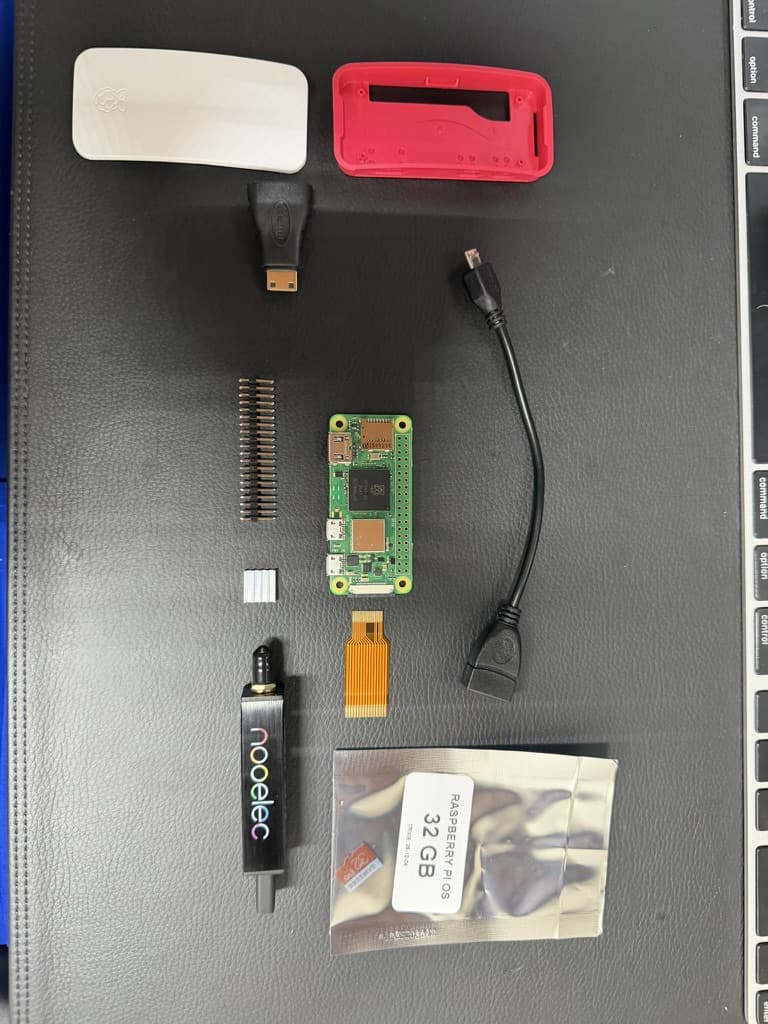
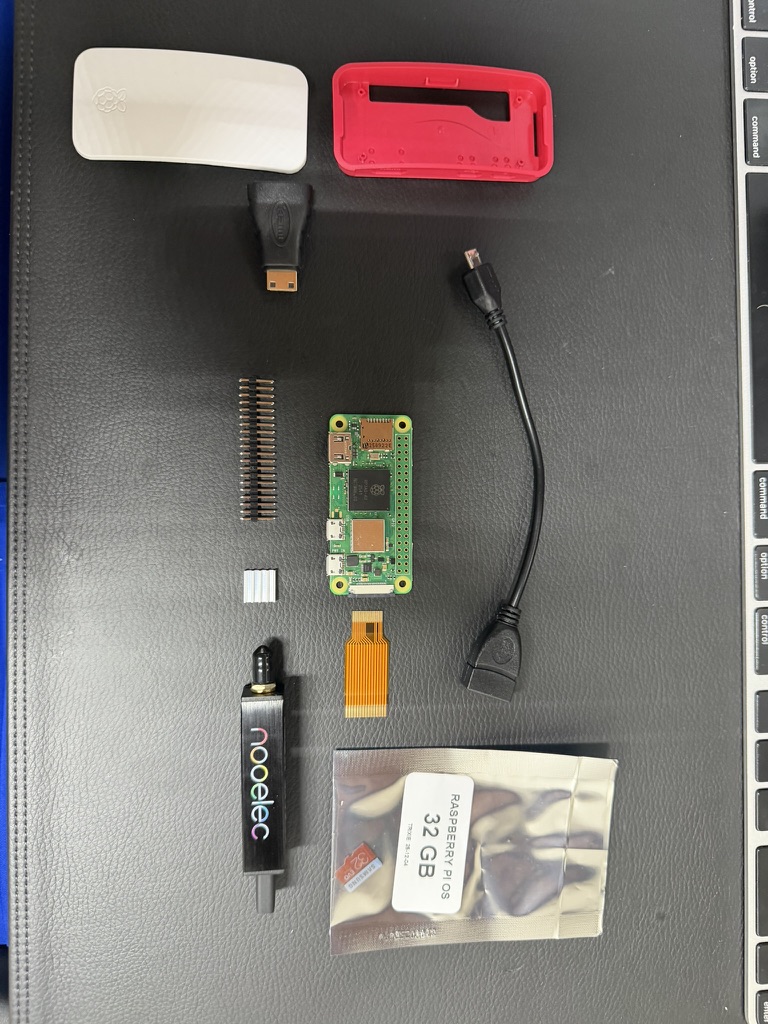
Here's everything we used:
Raspberry Pi Zero 2 W. A tiny, cheap, low-power computer. It is more than enough to decode AIS. A Pi 3, 4 or 5 also works if you have one in a drawer.
The official Pi Zero case (the red and white one), plus the small aluminium heatsink that comes with many kits.
A 32 GB microSD card. Anything 8 GB or larger is fine.
Nooelec NESDR SMArt v5. This is the radio: a USB software-defined radio (SDR) that tunes to 162 MHz. Any RTL-SDR dongle works; the SMArt is solid and has a metal case.
A micro-USB OTG adapter. The Pi Zero has micro-USB ports, and the dongle is full-size USB, so you need this little cable.
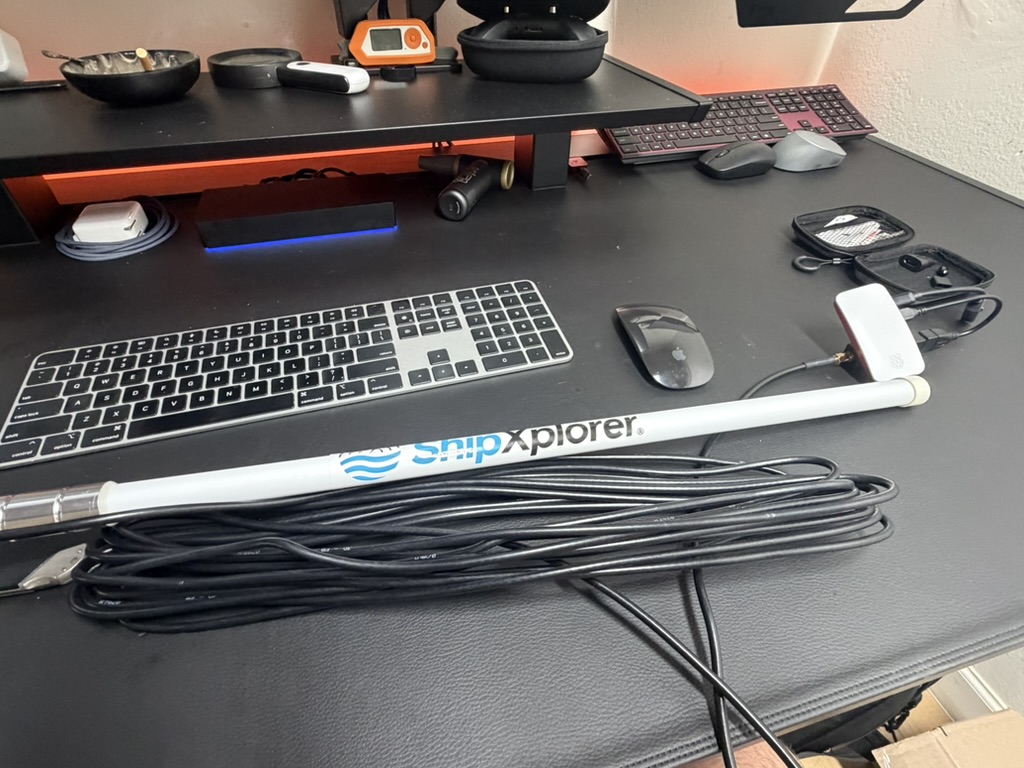
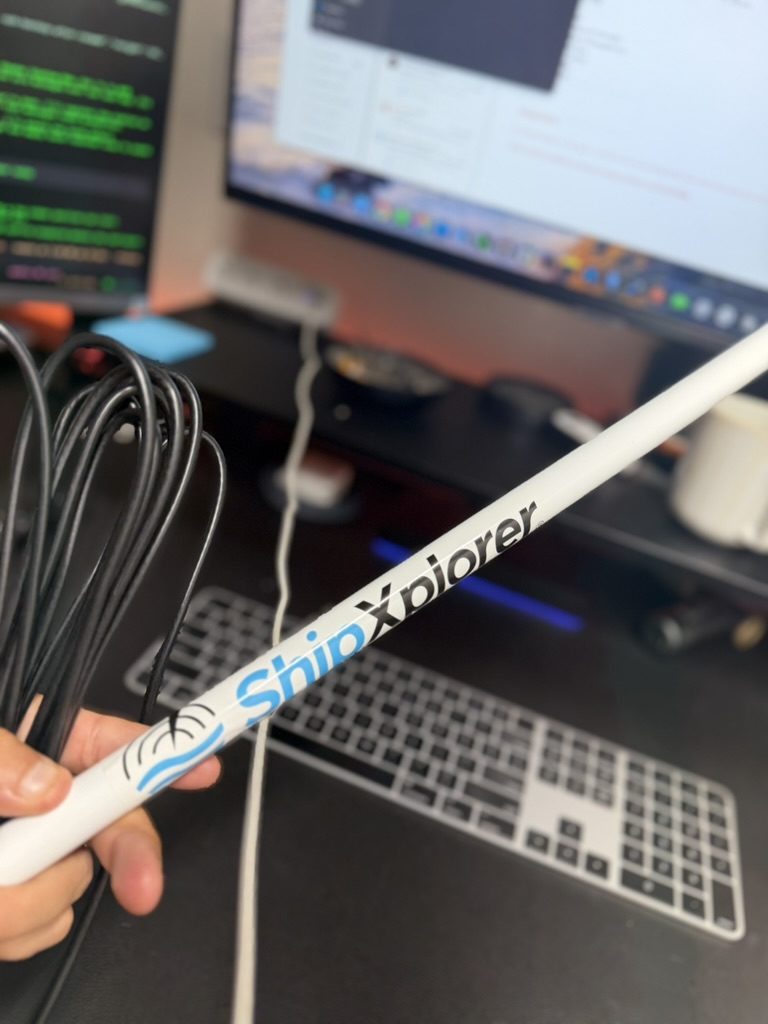
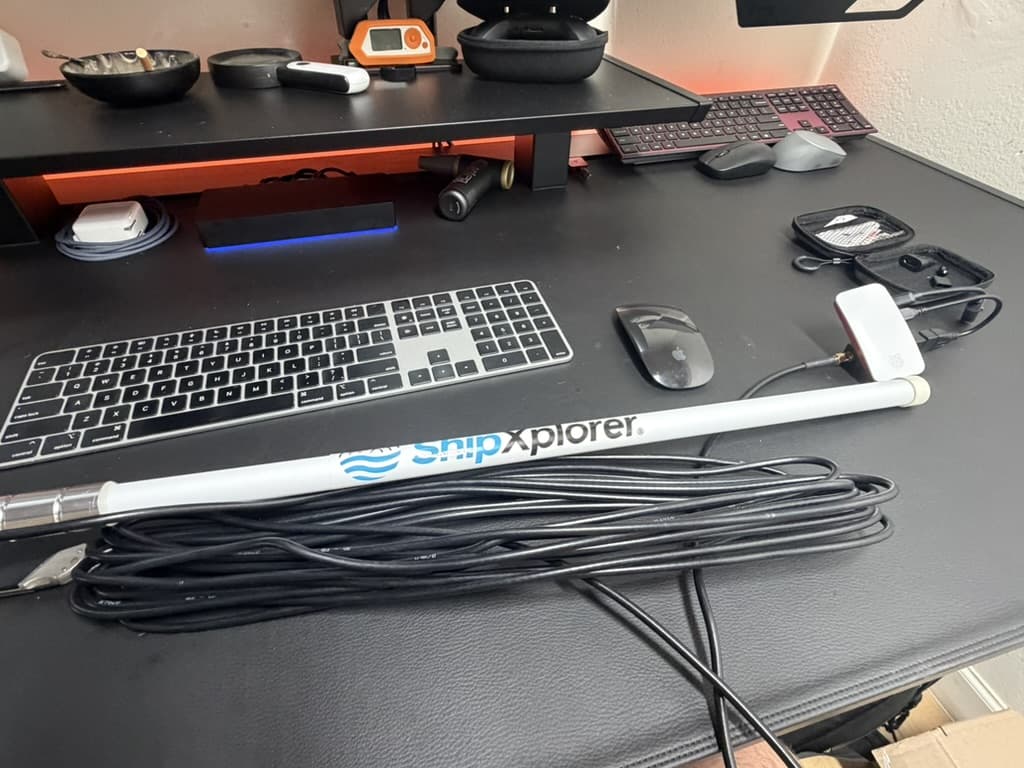
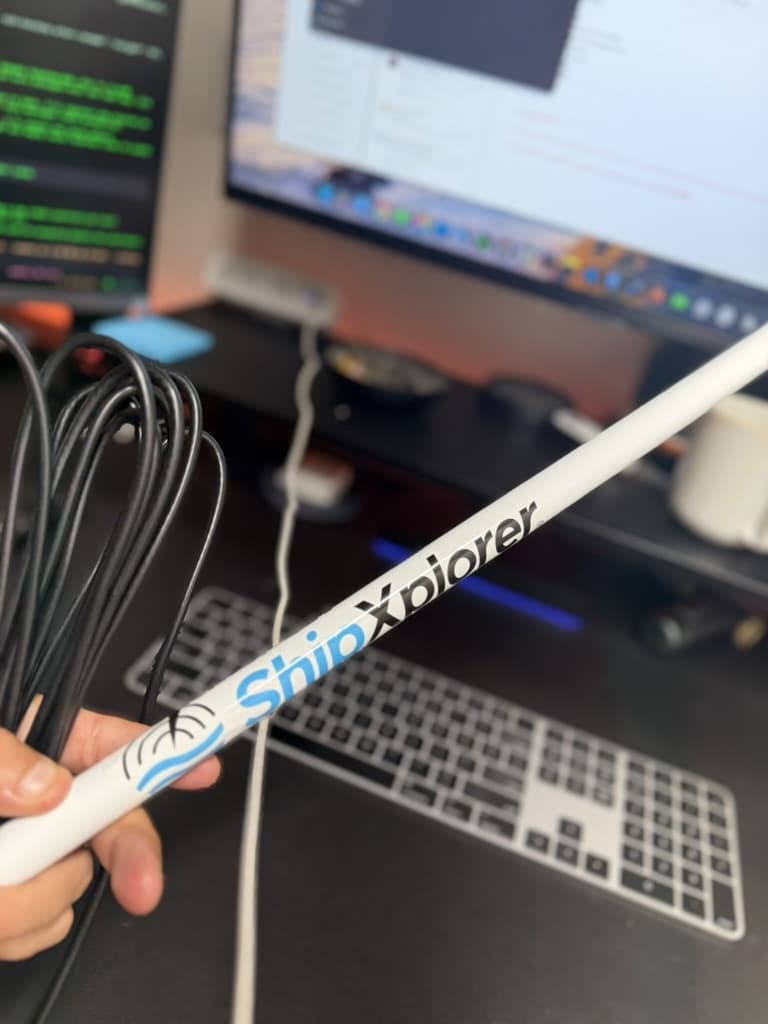
A marine VHF / AIS antenna. Ours is a fibreglass whip from ShipXplorer. This is the part that matters most (more on that below).
Coax cable from the antenna down to the radio, and a U-bolt bracket to mount the antenna on a pole or railing.
A good USB power supply. Cheap phone chargers cause random reboots. Use a proper 5 V supply.
You don't need the mini-HDMI adapter or the camera ribbon you see in the photo. They came in the kit. With our setup image there's no screen or keyboard needed at all.
The full parts list with current links and prices is on the contribute page.
Putting the Pi together
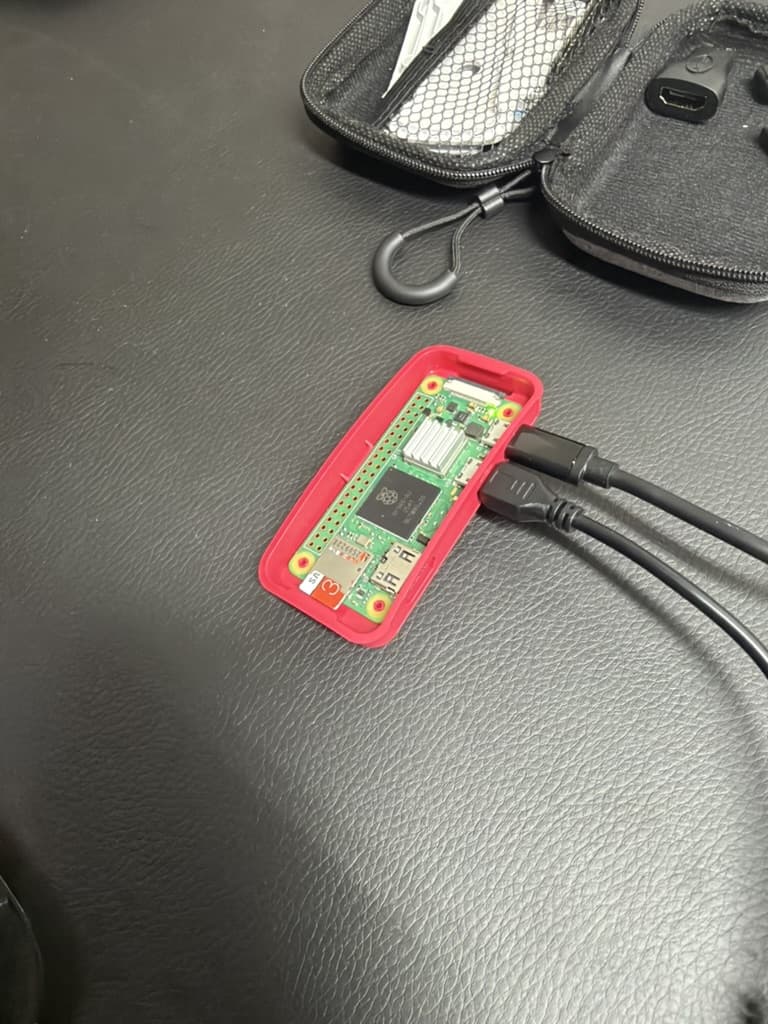
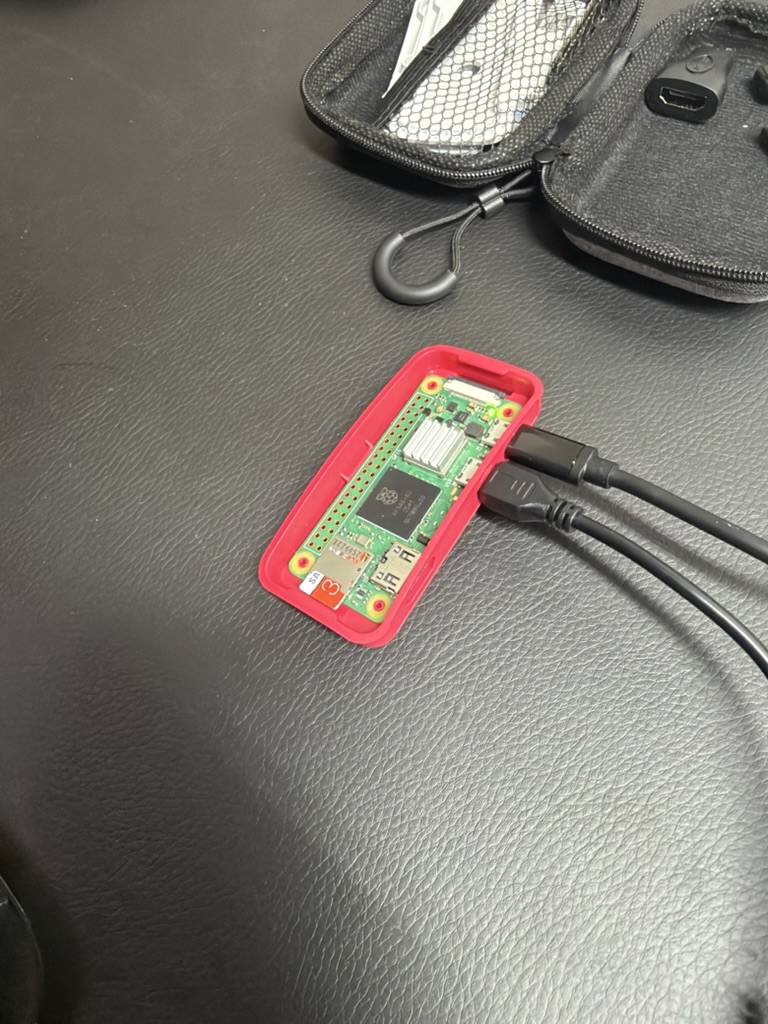
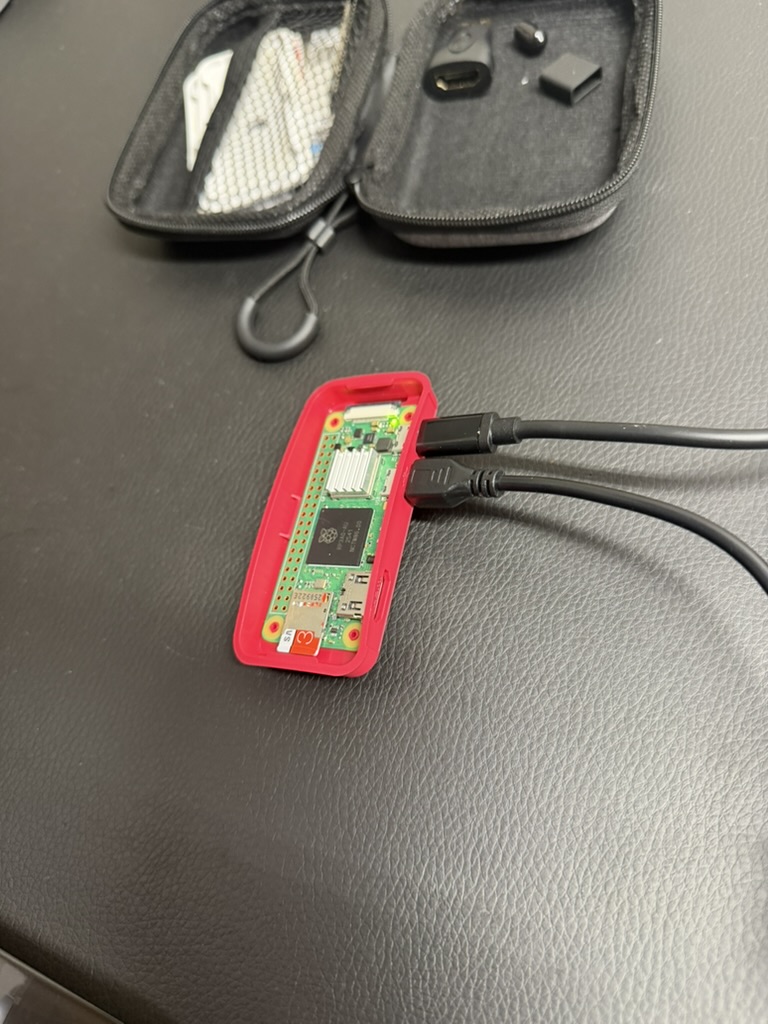
Stick the heatsink on the main chip (the square black one in the middle), drop the board into the case, and push the microSD card in. That's genuinely it. You don't need to solder the header pins for this project.
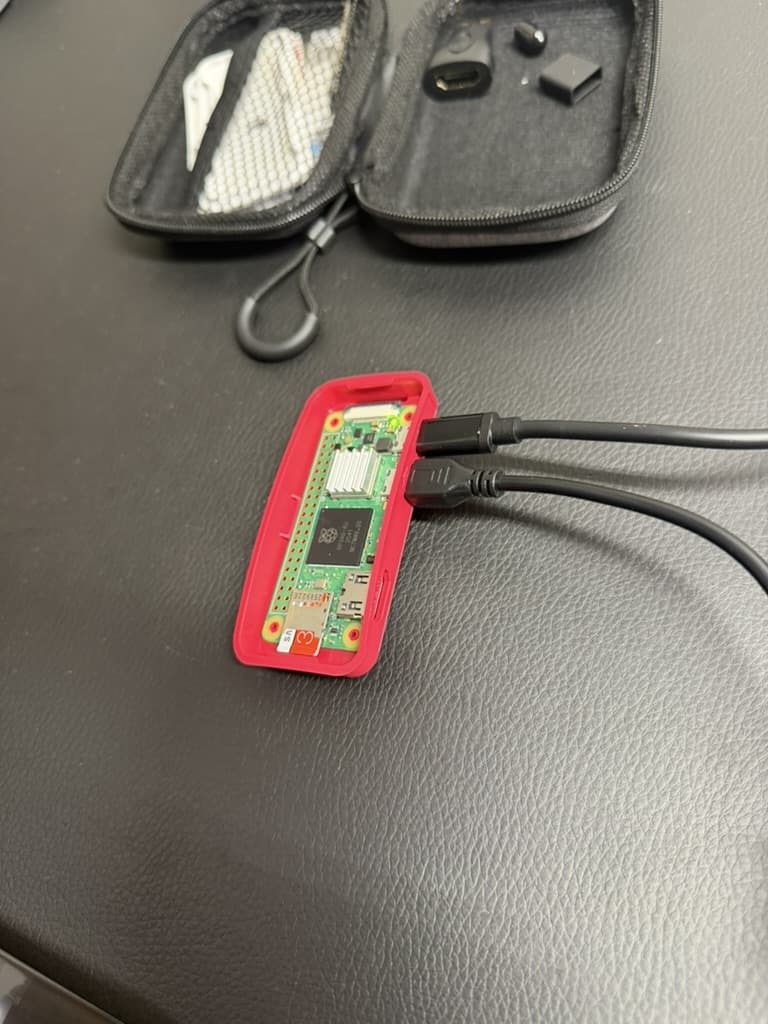
The Pi Zero has two micro-USB ports. The one nearest the corner is power only. The one next to the mini-HDMI port is the data port. That is where the OTG adapter and the radio go. Mixing these two up is the most common first-build mistake.
Radio, cable and mount
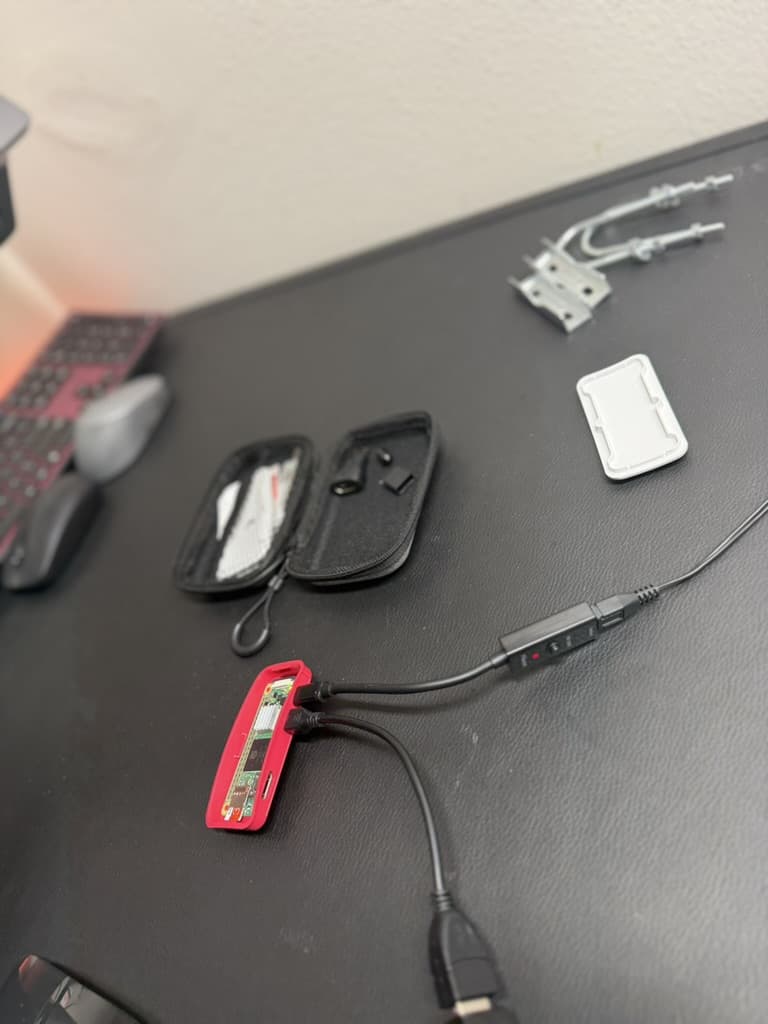
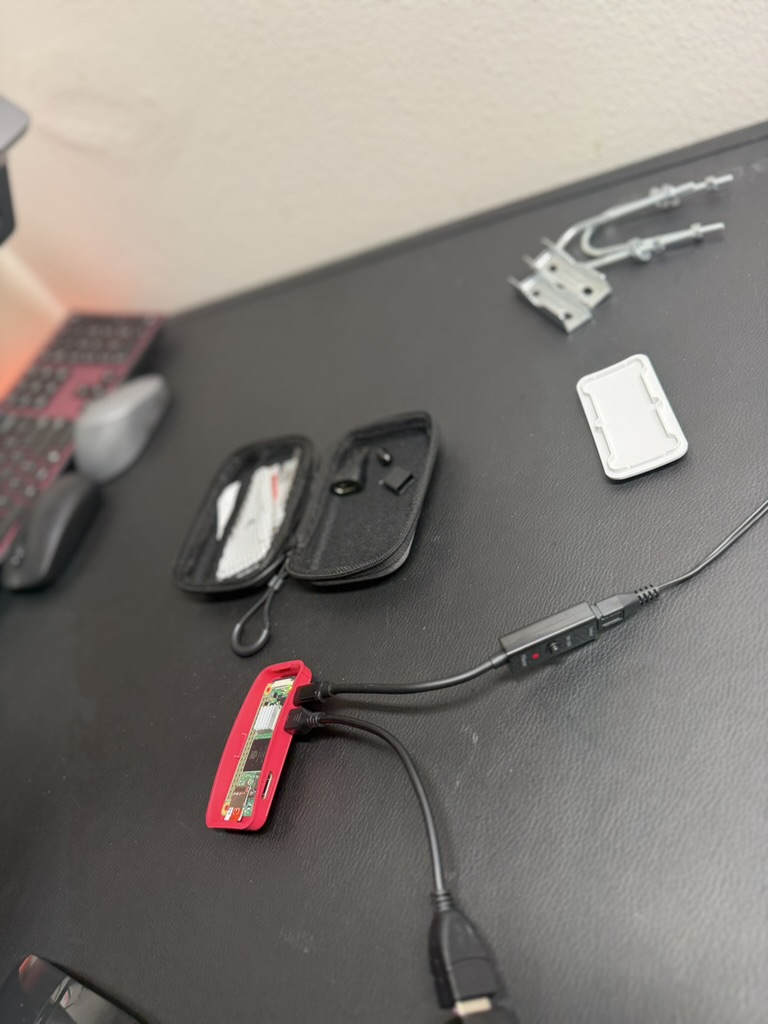
The radio plugs into the OTG adapter, and the coax from the antenna screws into the radio's SMA connector. The bracket is what holds the antenna up.
The one thing that matters most: height
AIS is line-of-sight. The higher your antenna, the further you hear. Doubling the height doesn't double the range, but it helps a lot, and nothing else you buy comes close.
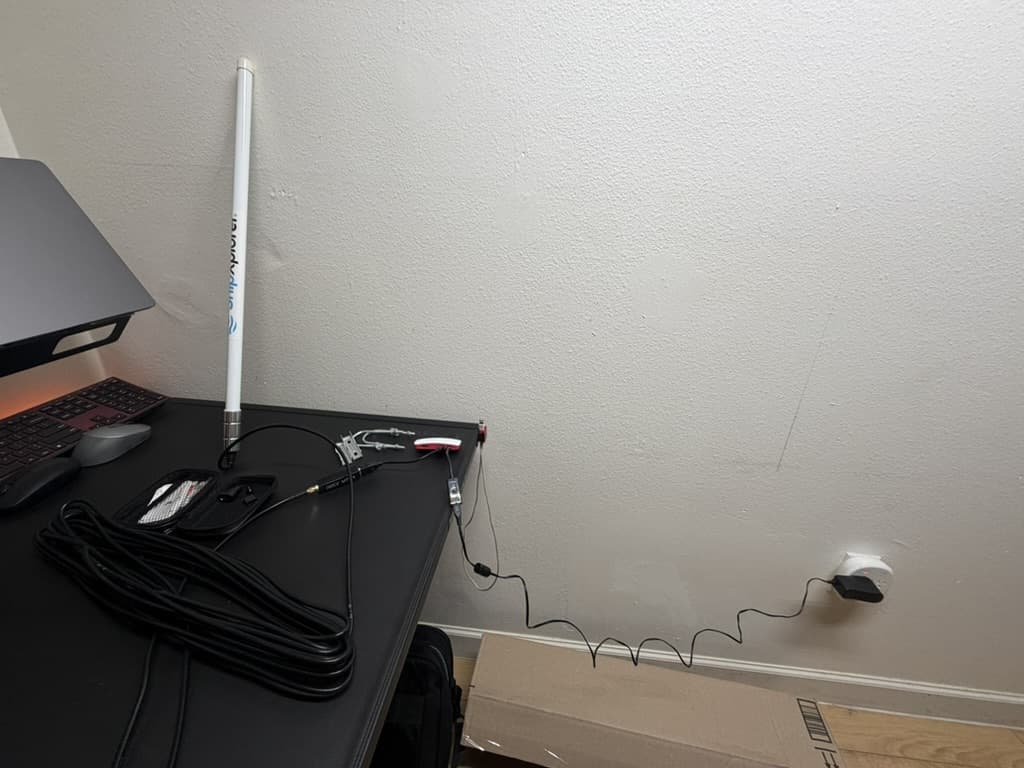
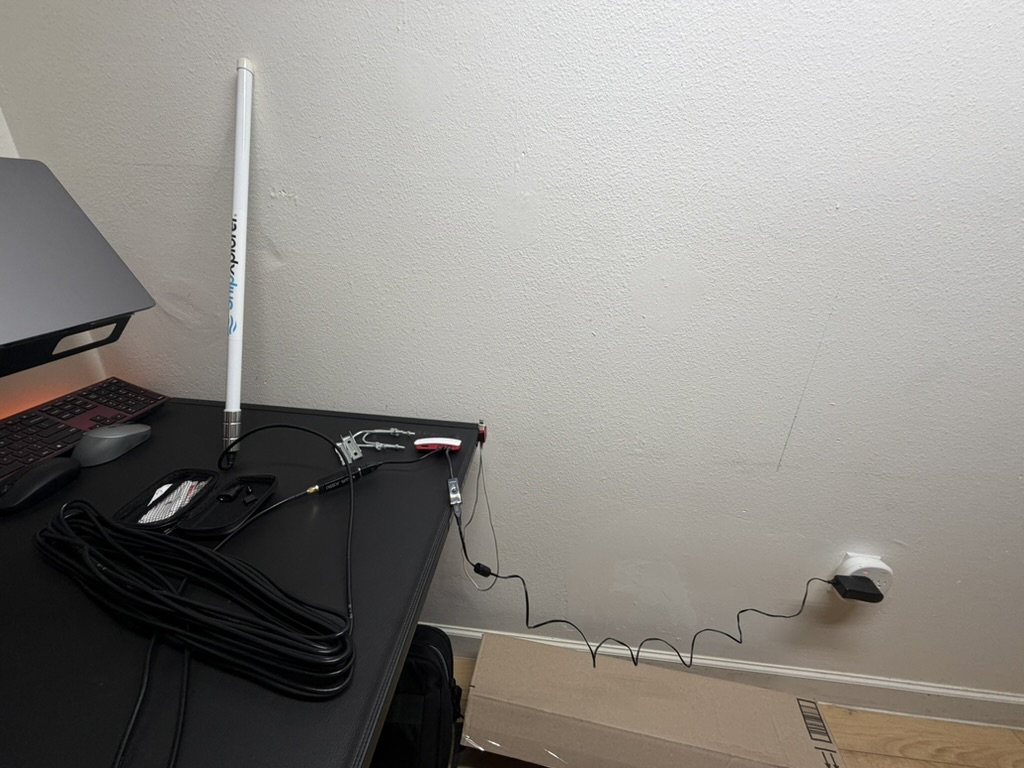
Our first test was exactly what you see here: antenna propped up next to the desk, indoors. It worked, and it heard a handful of ships about 16 km away. Once the antenna went up properly, Station One was hearing 7 to 11 different ships every hour, out to 31 to 37 km, from a spot that isn't even on the water.
Our tips:
Get the antenna outside and as high as you can: roof, balcony railing, a pole on the fence. Clear of metal and walls.
Keep the coax as short as practical. Every extra metre loses signal.
Indoors works for testing, but don't judge your station by it.
Not sure what you'll hear from your spot? The range planner on the contribute page estimates it from your antenna height.
Software: the easy way
There are two ways to set it up.
Our setup (recommended). Download the Voydar Beacon image (about 760 MB) and flash it to the SD card with Raspberry Pi Imager ("Use custom"). Check the download's fingerprint (sha256) against the one on the contribute page, which also links the public build scripts. On first boot the Pi either joins your Wi-Fi (if you put your Wi-Fi details in
voydar-wifi.txton the card before booting) or starts aVoydar-BeaconWi-Fi hotspot. Open the setup page, paste your station key from your receivers page, and it installs itself.Already have a Pi running? One command installs everything. Your station page shows it with your key filled in.
Already feeding MarineTraffic, AISHub or VesselFinder? Keep them. Voydar is just one more destination, and the setup page has an "Also feed" section for your other networks. Station One feeds both Voydar and AISHub.
The part where it was broken for months
Here's the honest bit. We first set Station One up back in June. The radio was decoding ships the whole time. But it was pointed at an old, unauthenticated address on our side that we had since shut down, so nothing ever arrived, and nothing told us. It just sat there, looking fine.
So we fixed that for everyone:
Your station page now tells you if your station is connected but not delivering, if it's been offline, or if its data is being held back by quality checks (usually a wrong location or a wrong clock), with the exact fix.
Setup now always uses your own station key, so a misrouted feed can't sit quietly.
If your station page says "No data yet" after 15 minutes, it's almost always one of three things: the key, the station's internet connection, or the radio not being detected. The checklist on that page walks you through each.
Is it worth it?
Our own station hears a modest 7 to 11 ships an hour from a spot inland. Meanwhile one of the first community stations, on the coast in South Africa, hears more than 50 ships an hour, out to 48 km. Where you are matters far more than what you buy. If you can see water, or you're near a port, river or busy channel, your station will be one of the most valuable on the map.
Stations that hear ships regularly for 30 days earn Voydar Pro, free. More importantly, your stretch of water shows up live for everyone who looks.
Questions about your build? Ask below. Post your parts list, a photo of your antenna setup, or what your station page says, and we'll help you get it running.